GCP Cost Tracking Setup
Connect your Google Cloud Platform account to track infrastructure costs automatically. Follow these steps to configure billing data access.
What You'll Need
GCP project with billing enabled, ability to create service accounts, and BigQuery API access.
Enable BigQuery Export
Configure GCP to export billing data to BigQuery.
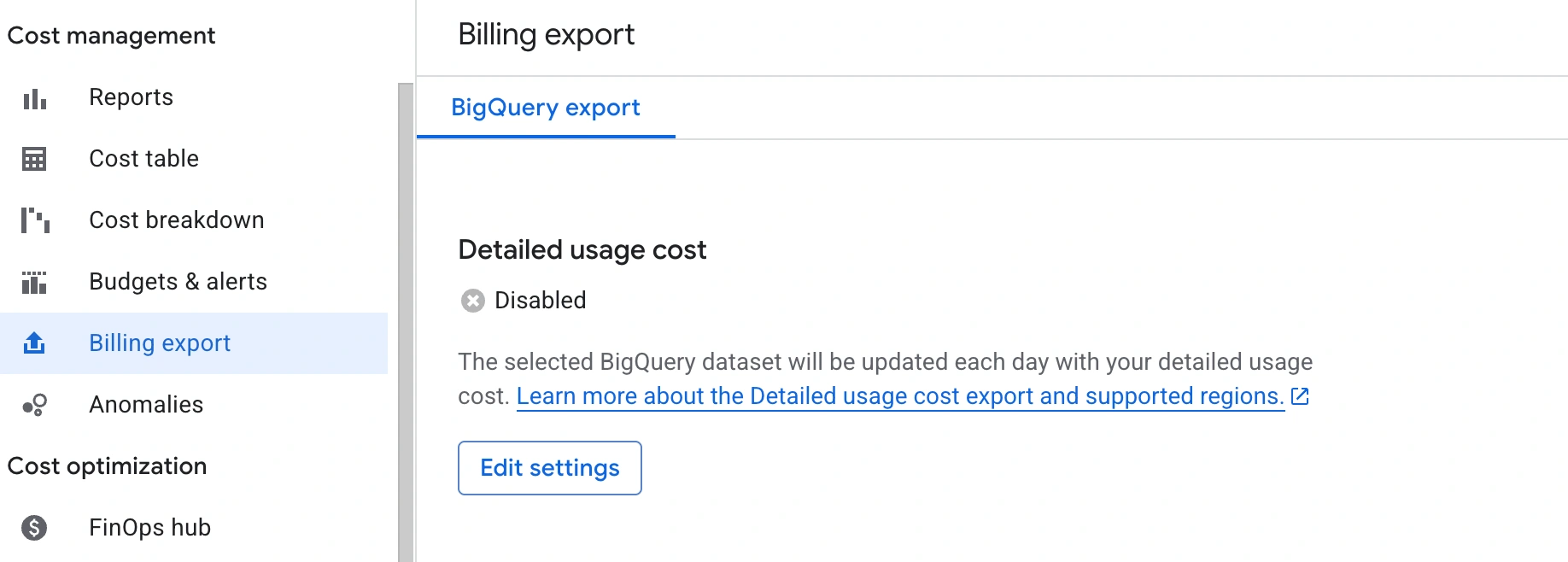
Go to GCP Console → Billing → Billing export
You'll see Detailed usage cost export (it will be disabled initially)
Click Edit settings
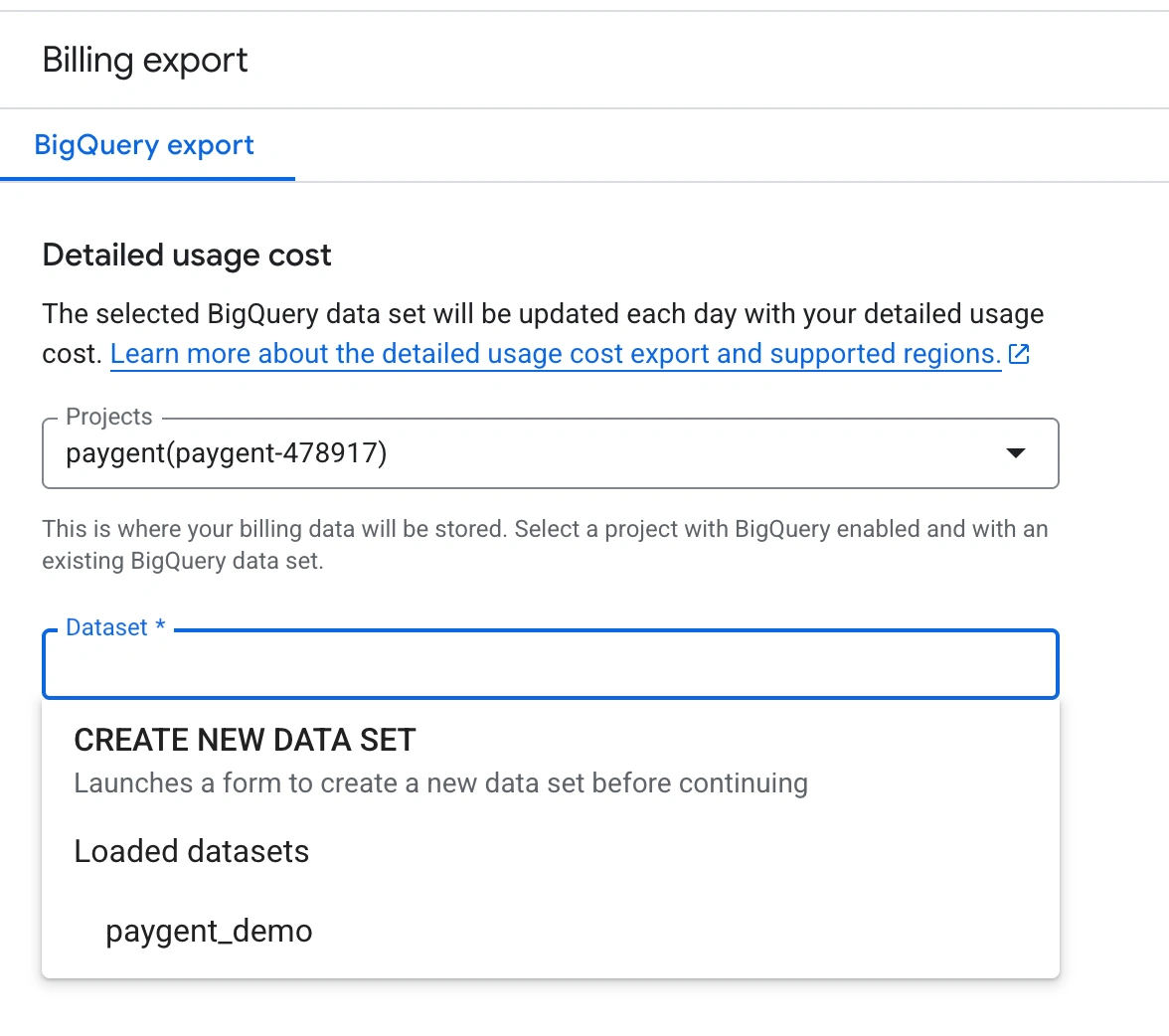
Select the project you want to track costs for
Create a new BigQuery dataset or use an existing one
Note the dataset name and table name created
Example: Dataset: billing_export
Table: gcp_billing_export_v1_XXXXX
Create Service Account
Create a service account with permissions to read billing data from BigQuery.
Go to IAM & Admin → Service Accounts
Click Create Service Account
Grant the following roles:
BigQuery Data ViewerBigQuery Job UserBigQuery Read Session UserComplete the service account creation
Click on the service account → Keys → Add Key → Create new key
⚠️ Select JSON format and download the key file. Keep it secure!
Upload Credentials to Paygent
In the Paygent dashboard, navigate to Infra Cost and select the GCP tab.
Click Choose File and select the JSON key file downloaded in Step 2
Enter the Billing Dataset name from Step 1
Example: billing_export
Enter the Billing Table name from Step 1
Example: gcp_billing_export_v1_XXXXX_XXXXX_XXXXX
Click Upload Credentials
Setup Complete!
Cost data will be available within 24-48 hours. Paygent will automatically sync your GCP billing data daily.
Troubleshooting
Invalid JSON file
Ensure you downloaded the service account key in JSON format (not P12). The file should start with {.
Permission denied errors
Verify the service account has all three required BigQuery roles. Check that the billing export is in the same project as the service account.
Dataset or table not found
Double-check the dataset and table names match exactly (case-sensitive). Ensure BigQuery export is enabled and has generated at least one export.
No cost data appearing
GCP billing exports are generated daily. Wait 24-48 hours after setup. Ensure your GCP project has actual usage to report.
Was this page helpful?
Need help? Contact us at support@withpaygent.com